
Subscriptions on my phone hide in two places
Subscriptions on my phone: where to find them on iPhone and Android, why no single screen shows them all, and how to cancel the ones you don't use.
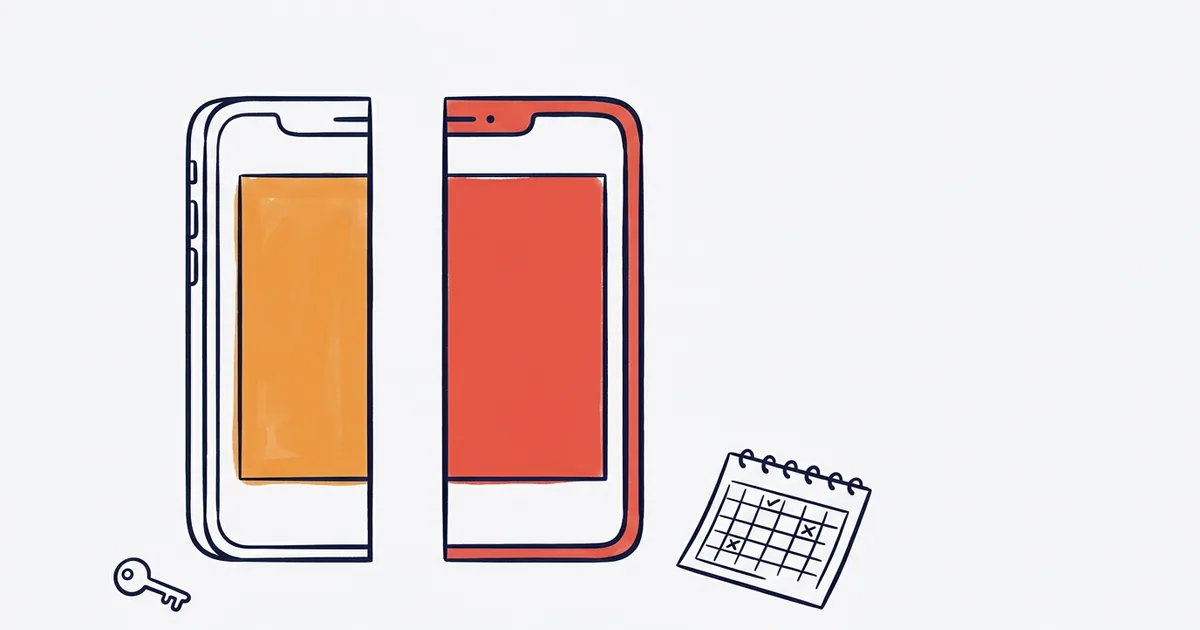
Subscriptions on my phone hide in two places, and neither warns you. Apple uses one Settings page; Google splits yours across your Account and Google Pay.
On iPhone, open Settings, tap your name, then tap Subscriptions, as Apple's support guide describes. On Android, go to Settings, then Google, then Manage your Google Account, then Wallet & subscriptions, per Google's help page. Recurring Google Pay payments sit at payments.google.com under Subscriptions. There's no cross-platform dashboard, so check both places once a month. Uninstalling an app doesn't cancel it on Google Play.
What you'll learn
- Apple puts every App Store subscription on one screen
- Android splits the same job across two Google pages
- No dashboard joins the two, so the gap is yours to close
- Cancelling everything is the wrong reflex
- Set one monthly check and a keep-or-cancel rule
Apple puts every App Store subscription on one screen
On iPhone, the job is short. Open Settings, tap your name at the top, then tap Subscriptions. Apple's support guide to purchases and subscriptions says this is where you change or cancel one. If you only use Android, skip this section.
That screen only covers what you bought through Apple. Say you paid for a music service on its own website: nothing here would list it. That bill shows up on your card or UPI statement instead. So a tidy Subscriptions screen doesn't prove you're paying for nothing else.
Past charges live somewhere else. Open the App Store app and go to your account for your purchase history, as Apple's guide describes. Use it when a charge appears and you don't recognise it. It's the fastest way to match a mystery amount to an app.
Family Sharing adds a wrinkle. Apple's guide says eligible subscriptions can be shared with your family. So a renewal you never signed up for might belong to someone else in the group. Ask them before you cancel anything, since it may be their plan.
Try a small exercise now. Open Subscriptions and sort what you see into piles: used this week, used rarely, forgot it existed. Cancel the last pile first. The middle pile needs a real decision, not a shrug. Write the piles down, because you'll want them when the renewal dates arrive.
Android splits the same job across two Google pages
Android needs two stops. For purchases made through Google, go to Settings, then Google, then Manage your Google Account, then Wallet & subscriptions. Google's help page on finding purchases, reservations and subscriptions says this is where they're listed. If you only use an iPhone, skip this section.
The second stop is Google Pay. Recurring payments set up there are managed at payments.google.com, under Subscriptions. Google Pay Help says you can change the payment method, cancel, or pay early from that page. Sign in with the Google account you pay with, or the page may look empty.
Now the trap. Google Pay Help is explicit: uninstalling the app doesn't cancel the subscription on Google Play. You have to cancel on purpose. The charge can keep arriving for an app you no longer see on your home screen.
There's a real cost to the split. You can clear one page, feel finished, and never open the other. That's the uncomfortable part: the second page is easy to forget precisely because it isn't in Settings. Google splits the work, and you have to join it back together.
Say a page shows a subscription you bought months ago and rarely use. Cancel it from that page, not by deleting the app, and note the date. Then check your card or UPI statement after the next billing date to confirm the charge really stopped. If it charges again, you'll have a dated record to raise with support.
No dashboard joins the two, so the gap is yours to close
See, the real problem isn't finding one subscription. It's that Apple and Google keep separate lists, and neither knows about the other. The research behind this article found no unified cross-platform dashboard on either side.
Renewals are the second gap. Neither platform's help pages describe a warning before a renewal or a price change. That means you have to go looking, because memory is the one system here that fails quietly. Put the renewal date next to each subscription in your note so you know when to act.
Third-party apps that promise to find subscriptions for you're a fair question. Whether any of them can read your Apple or Google lists directly isn't in Apple's or Google's help pages. Treat that claim with care. The official screens are where you actually cancel.
If you share a card or UPI with family, the bill may include subscriptions you don't recognise. Ask everyone to send a screenshot of their own subscriptions screen. Match the names against your statement, and the unknown charges get names. The point isn't to police anyone, just to learn what the card pays for.
Pick one date each month and stick to it. On that day, open Settings on your iPhone, then Wallet & subscriptions on Android, then payments.google.com. If you've only a couple of subscriptions, skip the routine and read your card statement instead. It also won't happen every month, and that's the honest weak point of this whole method.
Cancelling everything is the wrong reflex
The strongest objection is a fair one. Finding subscriptions is easy, so why not cancel the lot and start clean? A blanket cancel just swaps one problem for another: you lose things you rely on and waste time re-subscribing. Some subscriptions are worth their cost precisely because they're a hassle to replace.
Judge each one by use, not by price. A storage plan that holds your family's photos is worth keeping even if it's one of your bigger bills. A streaming service you opened once isn't worth keeping, even if it's cheap. The bill size tells you almost nothing; the last time you used it tells you a lot.
Timing matters too. Before you assume a cancel takes effect today, read what the screen says about when access ends. Google Pay Help lists paying early as an option. That's different from cancelling, so don't confuse the two.
Be honest with yourself about the ones you keep. Write the reason next to each. If you can't write one, that's your answer. Then set a rule for the maybe pile: if you haven't used it by the next renewal date, it goes.
This counter-case doesn't apply if money is tight right now. Then cancel first and re-subscribe if you miss it. Going without a service for a while costs less than a bill you can't cover. The same goes for anything you're paying for twice, such as two music apps.
Set one monthly check and a keep-or-cancel rule
Here's the whole plan in one place. There's no clever trick, only a routine short enough to survive a busy month. Run the steps once now, then repeat them on the same date each month.
- 1On iPhone, open Settings, tap your name, then tap Subscriptions.
- 2On Android, open Settings, then Google, then Manage your Google Account, then Wallet & subscriptions.
- 3Also on Android, open payments.google.com and go to Subscriptions.
- 4For each entry, write down the renewal date and one reason to keep it, or cancel it there and then.
Cancel from the screen where the subscription lives. Apple subscriptions are cancelled in Settings. Google Play ones are cancelled on Google's pages, and Google Pay ones at payments.google.com. Deleting the app never counts.
Put the steps in a repeating calendar reminder, with the renewal dates in the note. A reminder you wrote yourself works only as long as you keep doing it. Some months you won't, and a renewal will slip past. That's the trade-off of doing this by hand.
If the monthly check keeps slipping, that's useful information. Move to a tool that reminds you, instead of a habit that relies on you. Also note anyone else who pays on the card, so the family question doesn't wait until the bill arrives.
When RecurStop is the wrong choice
RecurStop is the wrong choice if you want an app to cancel subscriptions for you. It reminds you before a renewal, and you decide.
What to do next
Decide today which of the two places you've been ignoring, and open it now. If a monthly check feels like a chore, RecurStop is a privacy-first subscription tracker. It reminds you before a renewal so you can decide: keep it or cancel it.
Sources
- See your purchases and subscriptions in the App Store on ... — https://support.apple.com/guide/iphone/see-your-purchases-and-subscriptions-iph4e3e7324f/ios
- Find your purchases, reservations & subscriptions - Android — https://support.google.com/accounts/answer/7673989?co=GENIE.Platform%3DAndroid&hl=en
- Manage recurring payments & subscriptions - Android - Google Pay Help — https://support.google.com/googlepay/answer/7644008
- Payments & subscriptions — https://myaccount.google.com/intro/payments-and-subscriptions?hl=en-US
Frequently Asked Questions
Can one screen show subscriptions on both my iPhone and my Android phone?
No. Apple's Settings screen covers App Store subscriptions, and Google splits its lists across your Google Account and Google Pay, so you check each one separately.
Will deleting an app stop the charge?
On Google Play, no: Google Pay Help says uninstalling doesn't cancel the subscription. On iPhone, cancel from Settings, then Subscriptions, instead of assuming that deleting the app does it.
Why isn't a subscription showing on my iPhone list?
Apple's screen covers what you bought through Apple. If you paid on the service's own website, look at your card or UPI statement and cancel with that company.