
How do I find my subscriptions in 4 places
How do I find my subscriptions? Check four places: Apple, Google Play, your card statements, and PayPal or Amazon. It takes about 15 minutes.
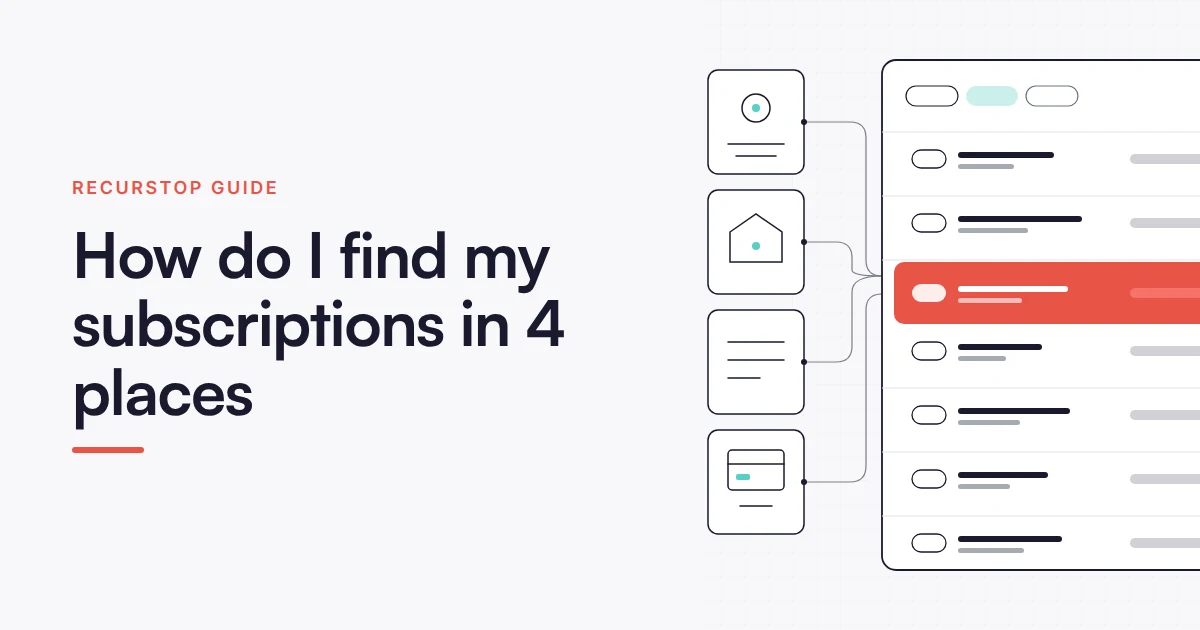
You can't find your subscriptions in one place, because nowhere keeps the full list. Apple, Google, your bank and PayPal each hold a piece, and checking all four takes about 15 minutes.
The answer to how do I find my subscriptions is four checks, because no single system lists them all. Check Apple's Settings, Google Play, the last 90 days of your card and bank statements, and PayPal or Amazon automatic payments. A guide on ontopofsubs, updated 5 September 2026, puts the full pass at about 15 minutes. Then write what you find into one list of your own.
What you'll learn
- No single system lists every subscription you pay for
- Four checks, in this order, catch most of what you pay for
- The one place that shows everything is a list you keep
- Subscriptions that hide best are the ones you forgot you started
- After you find them, write each one down and decide fast
No single system lists every subscription you pay for
Ask your phone what you're paying for and it'll answer only for itself. A guide on ontopofsubs, updated 5 September 2026, puts it plainly. Apple only knows about Apple billing. Google only knows about Google Play. Your bank only sees the card you're looking at.
That's what trips people up. A subscription lives where it's billed. A music app you bought through the App Store sits in Apple's list and nowhere else. A design tool you pay for by card never touches either store. It shows up only as a statement line.
Amazon is a third silo. Its help page says Your Memberships and Subscriptions holds your active, canceled and expired subscriptions, with renewal date and price. That list covers Amazon billing only. Nothing in it flows to your phone or your bank.
Google splits things as well. Its Account Help points you to Wallet & subscriptions, where Manage subscriptions opens the list. Google Play Help adds a warning: the email you used with a subscription app may differ from your Google Account. So you can look in the right place and still find nothing.
When does this not apply? If you've only ever paid through one app store and have no cards on file, a single check will do. Child accounts are different too. Google says that if a parent manages your account with Family Link, you won't find purchases or subscriptions listed. The family manager sees them instead.
Before you open anything, decide where your list will live. A notes app works. So does a spreadsheet. You'll need it in the next section.
Four checks, in this order, catch most of what you pay for
Set a timer. The same ontopofsubs guide says walking the four places takes about 15 minutes. The order matters less than finishing all of them. Write each subscription into your list as you go, so you don't have to remember it.
- 1On iPhone, iPad or Mac, open Settings, tap your name, then tap Subscriptions.
- 2On Android, open Google Play, tap your profile, then Payments & subscriptions, then Subscriptions. A browser works too.
- 3In your Google Account, click Wallet & subscriptions, then click Manage subscriptions.
- 4Pull the last 90 days of every card and bank statement. Note each repeating charge.
- 5Open PayPal and look at your automatic payments.
- 6Open Amazon and go to Your Memberships and Subscriptions. For software subscriptions or Subscribe and Save, scroll to the bottom and find Don't see your subscription?, then select the link for the service.
- 7Search your email for "subscription" and "receipt". Check the trash and promotions folders.
Why the statements come fourth: they catch what the app stores can't see. Anything you pay for directly on a card shows up there and nowhere else. That makes this the step most people skip, and it's the one that finds the most surprises.
Here's the uncomfortable part. The 90-day window the guide recommends misses anything that bills once a year. If you pay for any yearly plans, go back a full year on your statements. It's slower, but it's the only way to see them.
If you're not on PayPal, skip step 5. If you've never shopped on Amazon, skip step 6. And if step 1 or 2 shows nothing, don't stop. Google Play Help says to check you're signed in to the correct account first. Then check your other email accounts for the receipt.
Don't cancel anything yet. Just write it down. The decisions come after you can see the whole list.
The one place that shows everything is a list you keep
Here's the question the ranking pages skip: how do you see all your subscriptions in one place? The honest answer is that no platform offers it. Apple, Google Play, Amazon, PayPal and your bank each show their own slice. So the unified place is a list you build from those slices.
See, the list only works if it records where each item is billed. That one column is what makes the rest useful, because the ontopofsubs rule is that subscriptions live where they're billed. You can only change or cancel one in the place that bills it. Here's what four rows look like after a pass through the checks.
| What you found | Where it showed up | Where you manage it |
|---|---|---|
| A music app bought on iPhone | Settings › your name › Subscriptions | The same screen |
| A streaming app bought on Android | Google Play › Payments & subscriptions | The same place |
| A design tool paid by card | Card statement only | The tool's own account |
| Prime or Subscribe and Save | Your Memberships and Subscriptions | Manage Subscription |
Add two more columns. The first is the cost per billing cycle, in the currency your statement shows. A charge in rupees goes in as ₹. A charge in dollars goes in as dollars, with the rupee amount your bank took beside it. Never convert from memory.
The second is the renewal date. Amazon's page shows renewal date and price, so copy them from there. For the rest, read the date from your statement. Add a note on who pays. Google says a family manager can see purchases made with the family payment method.
Now the trade-off. A list you keep by hand goes stale. The day you sign up for something new, nothing updates it. If you only pay for a handful of things, that's fine, because you can re-check in minutes. If you pay for many, the list needs a habit behind it, and that's the part most people drop.
Whether it's a sheet or a tracker app, the rule is the same. One list, one row per subscription, and the billing place written next to it. Do it once properly, and the four menus become a quick check instead of a hunt.
Subscriptions that hide best are the ones you forgot you started
A few kinds slip through even a careful pass. Knowing them saves a second round of searching.
The first is the subscription under another email. Google Play Help says the email you used with the subscription app may differ from your Google Account. It suggests checking your other email accounts for the receipt. It also says to check with family members, because you may have subscribed on a family member's account.
The second is the free trial that turned into a paid plan. The charge appears on your statement, and the confirmation sits in your email. But it may not show in the settings of the app you're looking at. So the statement is your safety net. Search it for any name you don't recognise.
The third is the yearly plan. It bills once, so a 90-day statement can't show it. Search a full year of statements, and search your email for old receipts. The renewal date matters most for these, because a yearly charge is the biggest single bill you'll forget.
Google Play Help also says to check Google Wallet for a subscription you can't find. That's a quick extra look if the Play list comes up empty.
When doesn't this apply? If you've never taken a free trial and never used a second email, you can skip most of this. Few people can say that honestly. If you're unsure, spend 5 minutes searching old email addresses for the word "receipt". It's cheap, and it's where forgotten plans turn up.
After you find them, write each one down and decide fast
Now you've got a list. The work left is small, but it's what makes the 15 minutes pay off.
Mark each row keep or cancel. Don't think about it for long. If you can't remember what a charge is for, that's a signal in itself. Do the cancelling the same day or the next, while you still remember why you picked it. Waiting makes it easy to forget again.
Cancel inside the place that bills you. For an Apple subscription, that's the Subscriptions screen from step 1. For Amazon, it's Manage Subscription. Amazon's help page says that screen lets you change your billing information, change your delivery details or cancel a renewal. For a card-only charge, go to the service's own account page.
If a subscription is on someone else's card, ask them. Google says the family manager can see purchases made with the family payment method. A shared plan isn't yours to cancel alone.
Then set a calendar reminder to run the four checks again. Pick a date you'll actually keep. A quick pass is easier than a full audit. You already know what's on the list, so you only need to spot what's new.
This doesn't apply if you've decided to keep everything. Even then, the list is worth saving. It tells you the cost of each plan and when it renews, so no charge catches you off guard.
When RecurStop is the wrong choice
RecurStop is the wrong choice if you want an app to cancel subscriptions for you. It reminds you before a renewal, and you decide.
What to do next
Decide today that the list you build is the one source you trust. Then spend the next 15 minutes filling it from the four places. If you want reminders before renewals, RecurStop is a privacy-first subscription tracker, free forever for up to 5 subscriptions.
Sources
- Find your purchases, reservations & subscriptions - Computer - Google Account Help — https://support.google.com/accounts/answer/7673989
- Manage Your Subscriptions with Amazon Subscriptions - Amazon Customer Service — https://www.amazon.ae/gp/help/customer/display.html?nodeId=GU8AWX4GDKM7QGTE
- Fix problems with subscriptions - Android - Google Play Help — https://support.google.com/googleplay/answer/9818348?co=GENIE.Platform%3DAndroid&hl=en
- How to Find All Your Subscriptions (iPhone, Android, Card & PayPal) — https://ontopofsubs.com/guides/find-all-your-subscriptions/
Frequently Asked Questions
Can I see all my subscriptions in one app?
No platform does it. Apple, Google Play, Amazon and PayPal each list only their own billing, so the single view is a list you keep.
Where do I find subscriptions on my iPhone?
Open Settings, tap your name, then tap Subscriptions. That shows only what Apple bills.
Why can't I find a subscription I'm sure I pay for?
Check you're signed in to the right Google account, and search your other email addresses for the receipt. Google Play Help also says to ask family members and to check Google Wallet.